
Traffic Data - Video
OWL Camera &
TDC ULTRA With Video Mode

The Owl Camera and TDC Ultra with Video Mode enables you to collect, record and report several varieties of intersection traffic data. Standard Turning Movements, Roundabout Turning Movements, Classification and Gap are all studies studies that can be recorded in video mode. In addition to these, other studies can be recorded with the TDC Ultra in real time mode, including Enhanced Turning Movements, Signalized Intersection Delay, Stop Sign Delay, Saturation Flow and Spot Speed. All data recorded in the TDC Ultra can be downloaded and processed with the PETRAPro software.
OWL CAmera


OWL
The Owl camera makes intersection video data collection easy. Simply install the OWL using the mounting pole pointed toward the intersection you want to record. The Owl's Android-based setup app can then be used preview the video, set a schedule and monitor battery life. The unit will record multiple days of video on a single battery charge and can be programmed to record specific hours within a day.
Once your video has been collected, simply remove the USB flash drive from the OWL and the video file can be transferred to your computer. Most video viewing software, like the popular VLC media player, can be used to playback the recorded video.
Traffic data, including vehicles, bicycles and pedestrians, can then be manually recorded using a TDC Ultra Traffic Data Collection board from the comfort of your office. THE TDC Ultra's Video Mode function allows you to playback the video at faster speeds of 1.5x, 2.0x or more, saving time when doing your data collection.
Owl Kit Includes: Owl camera, Base Unit, cables, mounting pole and clamps.
Specifications
Camera Size: 3” x 5” x 7” Camera Weight: Approximately 2 lbs.
Camera Codec: H.264 MPEG4 Resolution: 480i, 720p, 1080p
Frame Rate: 24 to 60fps Field of View: 170 degrees
Base Size: 12" x 10" x 9" Base Weight: 12 lbs. Battery: 12V 40 Ah

TDC ULTRA Data Recorder
Includes: TDC-ULTRA, carrying case, overlays, automobile power supply and manual.
*PETRAPro Software NOT included.

The TDC-ULTRA w/ Video Mode is a versatile traffic data collection tool and turning movement counter. Not only does it do the most common of all manual traffic data studies - turning movements - it does an additional nine studies. The TDC-ULTRA has a USB Port for downloading, the ability to collect Roundabout Movement Data and the ability to record data in Video Mode.
The TDC-ULTRA is easy to use, accurate and reliable. It is the easiest way to collect intersection data for quick analysis, saving you time and money.
Video Mode
A popular way to do turning movements and other traffic studies is to video record the location and later count the traffic while watching the video playback. The new Video Mode selection of the TDC-Ultra is designed to let you do this in an efficient manner.
With Video Mode you can now do a count by running the video faster (or slower) than real time. You can also take breaks during your counting without disrupting how the data is stored.
With the Video Mode you can complete a study in a fraction of the time it would take to do it in real time. In addition to standard turning movement studies, the Video Mode of the TDC-Ultra also supports Roundabout, Vehicle Classification and Multi-direction Gap studies.
All studies can be processed with JAMAR’s PETRAPro software.

Turning Movements
As a reliable turning movement counter, the TDC-Ultra is designed to make collecting turning movement data easy and accurate. The buttons are arranged to simulate a standard intersection. There are 16 buttons, with 12 normally used for the left, through, and right movements from each of the four approach directions. The additional four buttons are user-defined; they can be used for bicycles, pedestrians, or whatever you want.
Since the TDC-Ultra looks like an intersection, doing a count is very intuitive. If a car makes a left turn from an approach, you simply push the button that shows a left turn from that direction. The TDC-Ultra keeps track of everything else for you. At the end of every time interval, the data is automatically stored, so there is no need for technicians to take their eyes off the intersection to write down numbers.
While you record turning movements, you also have the option to classify the vehicles recorded in up to three separate classes using the TDC-Ultra's 'Bank' buttons. Trucks and other heavy vehicles can be stored separate from passenger vehicles, and percentage breakdowns can be determined.
In addition to the standard 3-class turning movement studies done by the TDC-Ultra, you can also do enhanced turning movement studies for up to 14 classes of vehicles. Vehicles can be classified based on the Federal Highway Administration’s standards, or by a user defined scheme of up to 14 classes. This is accomplished by the addition of 14 class buttons at the bottom of the data collector. You also are given several options on how to record the data with these keys.
Multiple studies can be stored in the TDC-Ultra turning movement counter. For each study, the unit stores the date and time, the number of intervals used, a site code, and the data. At any convenient time, you can transfer the data to your computer through the USB port to our PETRAPro Software, which allows you to easily read, edit and store the data, as well as print reports, without ever having to manually enter data.
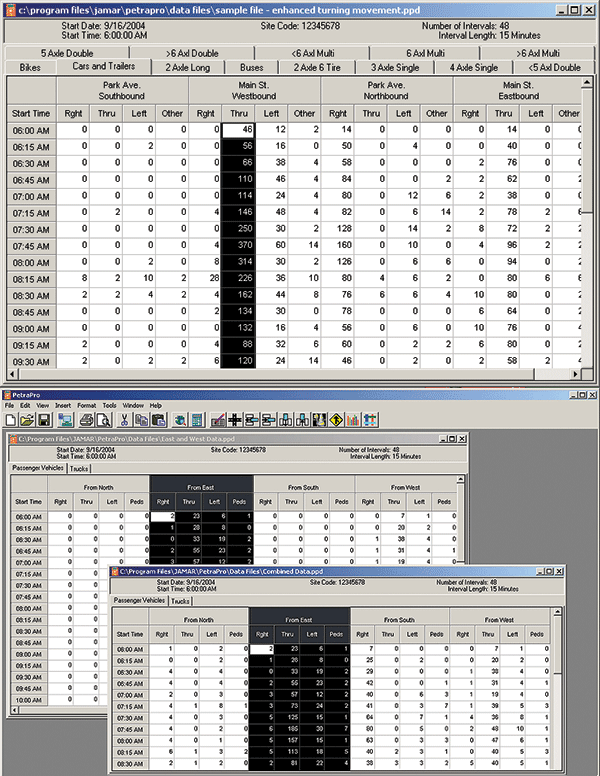
Easy Editing and Data Processing

Approach Wizard & Intersection Design
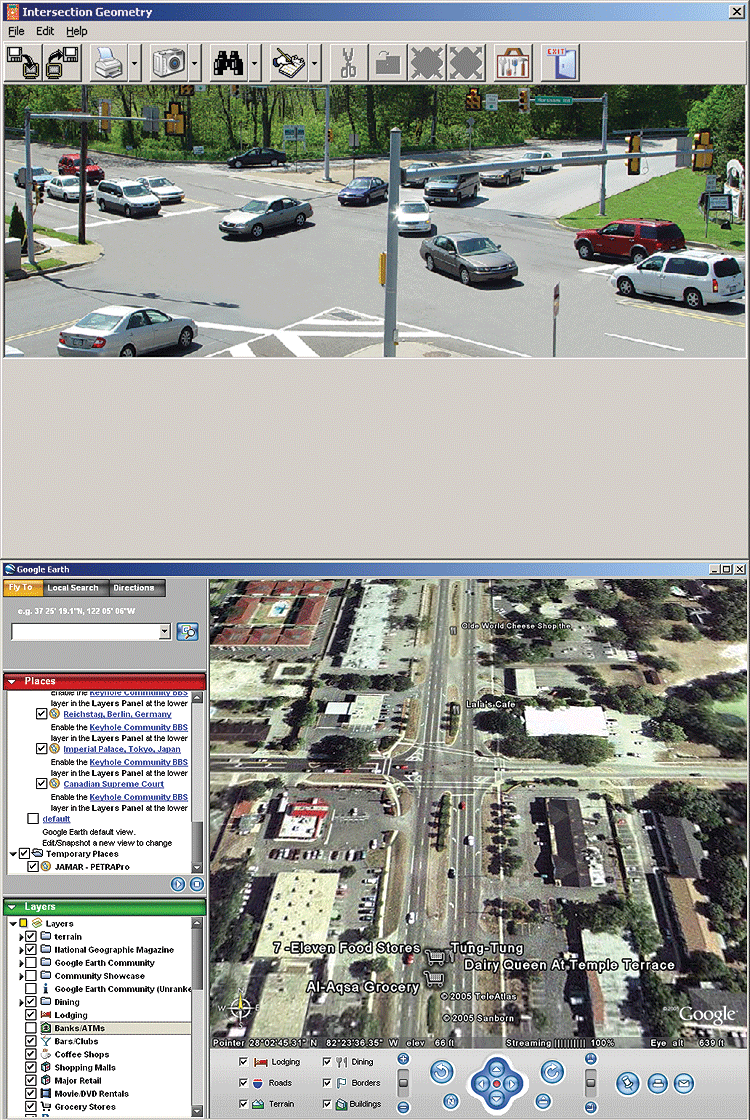
Access Aerial Views & Include Digital Photos

Roundabout Turning Movements

Stop Sign Delay

Signalized Intersection Delay

Multi-direction Gap

Spot Speed with Classification

Vehicle Classification

Bicycle
Classification

Saturation
Flow Rate
Time-Stamped Raw Data
Is there a specific type of data collection that you would like to do that the data collectors don’t? Don’t let this stop you from getting your data, just use the TDC-Ultra’s time-stamping capability. In this mode, whenever a key is pressed the unit stores the key number and the exact time it was pressed. Each key press is stored with a time stamp accurate to one-hundredth (.01) of a second. This raw data can be downloaded and exported into Excel or other programs for custom analysis. Now you can do literally any type of data collection using a TDC Ultra and your own program.
Specifications
Size: 8.5” x 6” x 1.5” Weight: Approximately 1.5 lbs.
Memory: 128K, CMOS RAM. Lithium battery backup
Display: Wide temperature, 20-character LCD display
Output: ASCII format capable of being read by JAMAR software or other communications program
Clock: Always active real-time clock Interface: USB B Port
Power: 4 AA alkaline batteries or 6-18 volts, DC, 200 ma through external jack
SUPPORT
Our sales/support staff has decades of experience in all aspects of traffic data collection.
Call for Support: 800-776-0940